MR2DCad
🎨 MR2DCad
Your Creative 2D Drawing Studio ✨
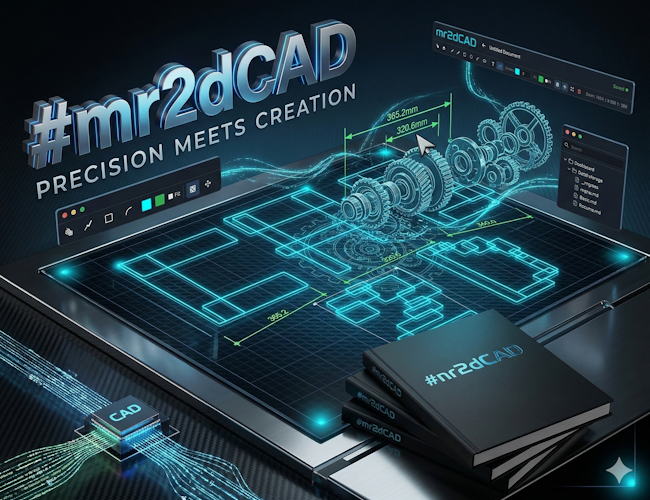
Welcome to MR2DCad!
A simple yet powerful 2D drawing tool that runs right in your browser. No downloads, no accounts - just pure creativity!
🚀 Getting Started
Ready to create your first drawing? Follow these simple steps:
- Create a New Document - Click the big blue "New Document" button on the home screen
- Pick a Tool - Choose from the toolbar at the top (lines, rectangles, circles, and more!)
- Start Drawing - Click and drag on the canvas to create shapes
- Customize - Change colors and line thickness using the color pickers
- Save - Your work saves automatically! Export it to share with others
🛠️ Drawing Tools
MR2DCad comes packed with all the essential tools you need:
🖱️ Select V
Click on any shape to select it. Hold Shift to select multiple objects.
✋ Pan H
Move around your canvas by clicking and dragging. Perfect for large drawings!
📏 Line L
Draw straight lines. Click to start, drag, and release to finish.
📐 Polyline P
Draw connected lines. Click to add points, double-click to finish.
⬛ Rectangle R
Draw rectangles and squares. Click and drag from corner to corner.
⭕ Circle C
Draw perfect circles. Click for center, drag to set the radius.
🌙 Arc A
Draw curved arcs. Great for rounded corners and curves.
🥚 Ellipse E
Draw ovals and ellipses of any proportion.
🔤 Text T
Add text labels and annotations to your drawings.
📏 Dimension D
Add measurement lines that show distances.
🎨 Colors & Styles
Make your drawings pop with custom colors!
🖌️ Stroke (Outline)
The stroke is the outline of your shapes. You can change:
- Color - Click the first color picker to choose any color
- Width - Enter a number to make lines thicker or thinner
🪣 Fill
Fill is the inside color of closed shapes (rectangles, circles, etc.):
- Color - Click the second color picker
- Enable/Disable - Check the "Fill" box to turn it on or off
📐 Grid & Snap
Need precision? We've got you covered!
| Feature | Shortcut | What it does |
|---|---|---|
| 📐 Grid | G | Shows a helpful grid behind your drawing |
| ⚡ Snap | S | Makes your cursor snap to grid points for precise alignment |
| 🔍 Zoom to Fit | F | Zooms to show your entire drawing |
🖱️ Navigation
🔍 Zooming
Use your mouse wheel to zoom in and out. The zoom follows your cursor, so point at what you want to see closer!
✋ Panning
Move around your canvas in two ways:
- Middle mouse button - Click and drag to pan
- Pan tool (H) - Select the hand tool, then click and drag
💾 Saving & Sharing
Auto-Save Magic!
MR2DCad automatically saves your work to your browser. No more lost drawings!
📤 Exporting Your Work
Want to share your drawing or back it up? Click the "Export" button to download a .mr2dcad file. You can share this file with anyone!
📥 Importing Drawings
Got a .mr2dcad file? Click "Import" on the home screen to load it right up!
📋 Managing Documents
On the home screen, you can:
| Action | How to do it |
|---|---|
| 📝 Create New | Click "New Document" |
| ✏️ Rename | Click the document title while editing |
| 📋 Clone | Hover over a document and click the copy icon |
| 🗑️ Delete | Hover over a document and click the trash icon |
⌨️ Keyboard Shortcuts
Speed up your workflow with these handy shortcuts:
| Shortcut | Action |
|---|---|
| V | Select tool |
| H | Pan tool |
| L | Line tool |
| P | Polyline tool |
| R | Rectangle tool |
| C | Circle tool |
| A | Arc tool |
| E | Ellipse tool |
| T | Text tool |
| D | Dimension tool |
| G | Toggle grid |
| S | Toggle snap |
| F | Zoom to fit |
| Delete | Delete selected |
| Esc | Cancel / Deselect |
| Enter | Finish polyline |
❓ Tips & Tricks
🎯 Perfect Shapes
Enable Snap (press S) before drawing to create perfectly aligned shapes!
🔄 Quick Duplicates
Select a shape, right-click, and choose "Clone" to make a copy. Great for repeating patterns!
📚 Layer Order
Use "Bring to Front" and "Send to Back" from the right-click menu to arrange overlapping shapes.
Made with 💜 by the MR2DCad Team
Have fun creating! 🎨✨
Development log
Leave a comment
Log in with itch.io to leave a comment.